Showing posts with label SCOM. Show all posts

Friday, January 20, 2012

“Agent and Operating System architecture are the same – Agent” error in SCOM

Hi

As the above error is quite simple to read. It is saying that “Agent and Operating System architecture are the same” but actually meaning of this that  the version of “SCOM Agent” insatlled on the machine is not same. For example you are running 32bit version of AGENT on 64bit Windows Machine.

Error

Agent  

Lets Check the agent.

I logged in to the server and i saw that “SCOM Agent” is installed in “C:\Program Files (x86)” directory. Which mean that our agent is 32 Bit.

Agent_1

Let check the version of windows.

The windows is 64bit.

Agent_2

Lets Un-Install the the Agent manually. Go to Control Panel, “Programs and features”, choose the “System Center Operations Manager R2 Agent” and right click on it and choose uninstall.

Agent_3

Agent “Un-installed”

Agent_4

“System Center Operations manger” directory is removed from “C:\Programs Files (x86)”

Agent_5

Now come back to “SCOM Console” and run the “Discovery Wizard” to install the SCOM agent on the Server.

Go to “administration” pane and right click anywhere and choose “Discovery Wizard”

Agent_6

Choose “Windows Computers”

Agent_7

I choose the “Advanced Discovery” and select “Server Only”

Agent_8

Now i choose to browse, i searched the computer and add it here. Click on NEXT

Agent_9

Provide you account which you want to use for search the server and for install agent in to it {it should be administrator account}. now click on “Discover”

Agent_10

It failed to Discover Server, Discovery failed.. Why????

Agent_11

If you want to re-discover the Server again. Make sure you deleted in “Agent Managed”, if the server name is still in the list then discovery wizard wont search it again.

Click on “Administration” pane and click on “Agent managed” and search for the server on which we just un-installed the agent.

Agent_12

Choose the server, right click on it and choose “Delete”

Agent_13

Click on “YES”

Agent_14


now lets run the “Discovery Wizard” again and hopefully this time we will be able to discover it again successfully

yes it discovered :)

Agent_15 .

Provide the the “Action account “ if needed. and click on FINISH.

Agent_16

Agent installation task started.

Agent_17

Task finished successfully.

Agent_18

lets login to server again and see if it is installed properly this time.

and you can see it installed on “C:\Program Files”. not in x86 folder.

All Sorted.

Agent_19

why this happens.

Because

if you see the Agent Directory in SCOM Installation media, it seems there is no agent for 64bit windows, so sometime users manually installed the i386 version of SCOM agent.

But  for 64 bit windows install the agent from AMD64 bit folder. :)

for ITANIUM bases servers installed the agent from : ia64 folder

for 32bit based servers install agent from : i386 folder

for 64bit Intel/AMD based servers install agent from : AMD64 folder

20-01-2012 16-01-44

Thanks

hope it helps someone :)

Aman Dhally

Tuesday, November 29, 2011

“When you un-installed the SCOM Agent from managed servers, SCOM is not discovering those Servers again to re-install agents”

Hi,

Today i have found that on few of our servers there are wrong version of SCOM Agents is installed, for example 32bit Agents are installed on 64bit Servers. Then i plan to uninstall them and reinstall the proper agent version

I un-installed the Agents using “Add remove programs” on all the servers and then tried to reinstall them again using “Operations Manager Console”.

But

When i run the “discovery wizard” it’s not showing me the server on whose I un-installed the agent, i tries 3-4 time but same problem. then i searched the internet and tried few troubleshooting tip but nothing helps.

then i thought let’s check the “agent managed” may be the server is still on SCOM Database that’s why its not detecting it.

I got to “Administration Pane” and click on “Agent managed” and then i search for the server on which i am trying to re-install the agent and as expected it was there.

Agent_12

ok, not its time to delete it, select the server and right click on it and click on “delete”

Agent_13

now click on “Yes”

Agent_14

All Done, wait for 5 minutes , run the discovery wizard again and hopefully this time you will successfully able to discover the Server :)

Solution: In my case the solution was removing the server in “Agent managed”

thanks

aman dhally

Tuesday, November 22, 2011

“A SQL job failed to complete successfully” error in SCOM

Hi,

As the error is self explainery that one of our SQL Backup Job is failed. How to fix it? Depends how much you know about SQL and you also know what to do. But let’s check which job is failed and let me show you how to check the failed “SQL Job” , I know its quite simple but sometime few SCOM new users don’t know where to find these failed jobs.

Error:

Error is showing that “SQL Job is failed on Computer 2K” and the job name is “Copy Tables From”

Sql_Job_1 

let me RDP to my SQL Server “2K” and let me open “ SQL Server Enterprise Manager”

Click on your SQL Server, expand the “Management” , beneath it expand “SQL Server Agent” and then click on “Jobs” and here is our failed SQL Job. You can see there is a red cross in the front of the the job.

Sql_Job_2

To check the more details about the job, right click on it and then choose “View Job History”

Sql_Job_3

now click on “Show Step Details” if you want to know more info about the job.

Sql_Job_4

So here is the complete step info about the backup job. I think you can find a useful info on why this job failed.

Sql_Job_5

Otherwise: go to your SQL Administrator and told him “Damn, Fix it ,”

Thanks

Aman Dhally

Monday, November 21, 2011

SCOM : How to resolve “The SMTP Local Retry Queue Total is outside calculated baseline” error in SCOM.

Hi
As the notification is clearly saying that there is some error in our exchange server’s Local retry Queue. But what is the exactly happening.?
Let explore it little bit.
Error :::
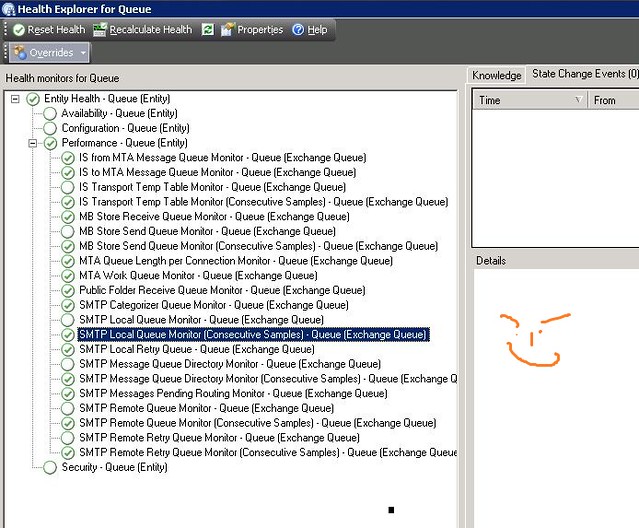
Right Clink on the Error, Click on Open and Choose “Health Explorer”

Now Click on “SMTP Local Retry Queue - Queue [Exchange Queue] , and click on “Monitor Properties”

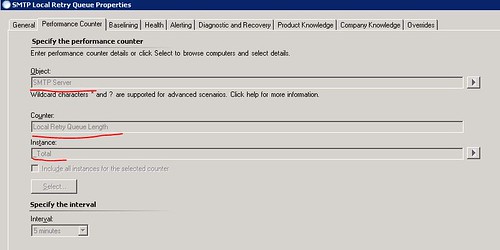
In “Performance Counter” tab, it is showing that this monitor is based on “Perfmon” and it is monitoring using the “Local Retry Queue Length” on “SMTP Server” Object of the Exchange Server.


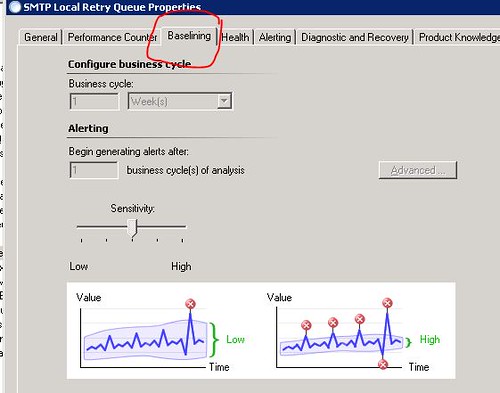
The Next tab in “Baselining”, which indicates that this is a “STT” Self Tuning Threshold Monitor. OK,,


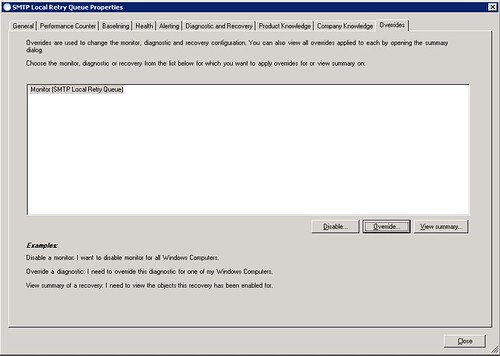
Now click on “Overrides” tab, and click on “Overrides”

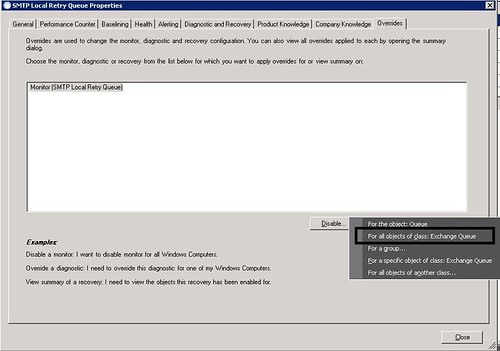
Choose “ For All Object of Class Exchange Queue”


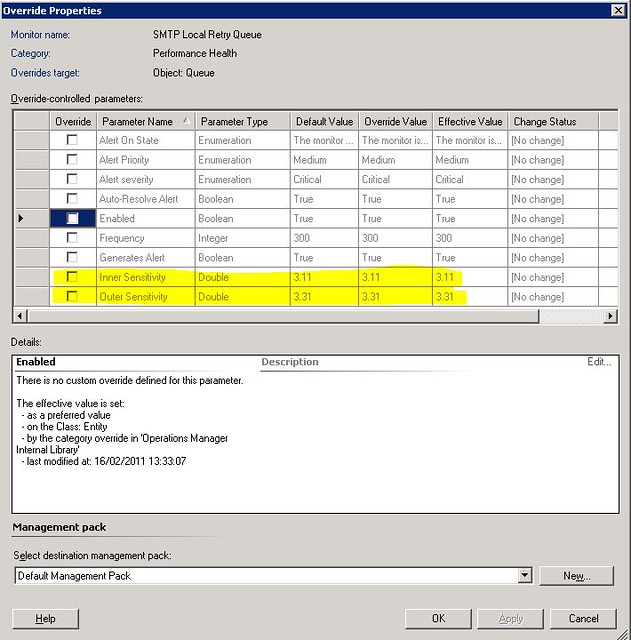
in Overrides the “Inner Sensitivity” of the monitor is 3.11 and I think it means if it have more then 3.X message in the Local retry queue it should send an alert.


how to check????
why not we manually check the “Local Retry Queue” performance counter manually, Isn’t it is a good idea?
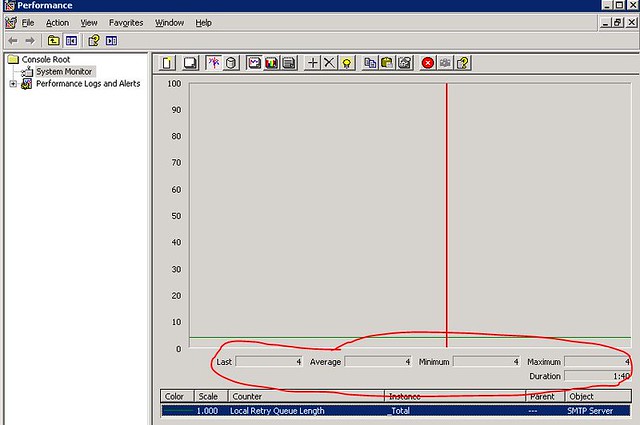
let’s do it, Open the “Performance Monitor” in Object choose “SMTP Servers” and in Counter choose “Local Retry Queue Length”
in Counter Explanation is says “ The Number of messages in the local retry queue”


Ok, so how many local messages are stuck, let check, OK , we have 4 local message stuck in the retry queue.


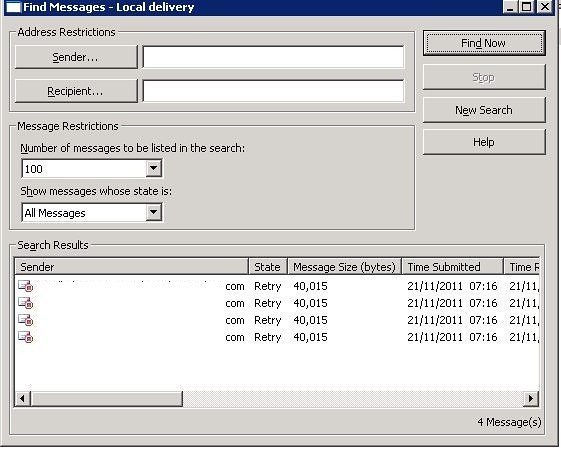
now go to your Exchange Server Queue and you will find that there is 4 messages are stuck.


let’s find them , Delete them if they are not necessary emails.


Once the Messages are deleted, our local retry queue is back to normal i means on Zero 0.


after 5-10 minutes the error should be gone otherwise you can choose the monitor and click on “Recalculate health” Option.


YippY!!! Exchange Server is Happy Again.


Thanks
Aman Dhally

Friday, November 18, 2011

Get-Overrides created on Specific Day .

hi,

yesterday one of our  SCOM admin created few overrides in SCOM and today he is on leave and the also not picking up the phone and I need to know which overrides he created.

Then i think that lets try to write a little basic PowerShell script which show the list of overrides created between specific number of days.

you can download the script from here : http://dl.dropbox.com/u/17858935/Get_SCOM_Overrides_by_Day_Created.zip

Make sure you run this script in “Operations manager Shell”

   1: ### I set $olddate to 2 Days ago date
   2:  
   3: $olddate = (Get-Date).AddDays(-2)
   4:  
   5: ## Select every Management pack and Piped it to "Get-Override)
   6:  
   7: $Mp = Get-Managementpack | Get-Override 
   8:  
   9: ### Now it will show only overrides which are created after $oldDate
  10:  
  11: $Mp| Where-Object { $_.TimeAdded -gt $olddate} | select ManagementGroupId,Name,TimeAdded | fl *
  12:  
  13: ######## E N D of S C R I P T #############

in $olddate i minus 2 days so if today is 18 November then $olddate should have 16 November stored in variable


OldDate


in variable $Mp in am storing all Management packs and piped them to Get-Overrides


MpPack


lets run $Mp lets see what we will get.


It shows the list of all Overrides in all management packs. Now we need to sort them.


MP2


$Mp| Where-Object { $_.TimeAdded -gt $olddate} | select ManagementGroupId,Name,TimeAdded | fl *


in above command , we piping $MP to where-Object cmdlet and choosing TimeAdded property in Overrides and comparing them with our variable $OldDate , so if the TimeAdded is property is greater then 16 November then it show all the Overrides created between 17,18 November.


seems working … :)


result


Download Link: http://dl.dropbox.com/u/17858935/Get_SCOM_Overrides_by_Day_Created.zip


Hope someone like it :)


Thanks


Aman Dhally

Monday, July 11, 2011

SCOM: Use Operations Manager Shell to close multiple Alerts generated by Same Rule

Hi,

When today i login in to my SCOM console I saw approx 134 Active Alerts about Microsoft SQL Job failure. I was about to close these alert but then one thing strike in my mind that lets try to close these alerts using “Operations Manager Shell”. These Alerts are generating from same source and the name of the alert is same to it would not be to hard. So let try.

problem

Our First Step is to find out the Command which can show us Alert in SCOM Shell.

Open “Operations manager shell” and type  Get-Command *alert* , this will search for all SCOM cmdlets which have the word alert (we use wildcard *), and as you know PowerShell cmdlets works on Verb-Noun format  so if we use Get-Alert cmdlets it will shows all alerts.

alert

Let Try Get-Alert

alert-2

Type get-alert in the shell and hit Enter and it shown you all alerts.

Sol-5

Next task is to choose which Alert to Close .. if you look at active Alert in SCOM CONSOLE name of My Alert is “"A SQL job failed to complete successfully"

 problem-1

Now our next step is to find the properties and methods supported by Get-Alert command. To know these we need to use another command Get-Member

member

Yes.. it has name property…Gr8

Sol-2

Now we need to see all alerts whose name match “"A SQL job failed to complete successfully", for filter the output from Get-alert command we pipe (|) the output of Get-Alert command to Where-Object cmdlet.

Get-alert | Where-Object { $_.Name -match "A SQL job failed to complete successfully"}

where 

This will show all alerts whose name matches with "A SQL job failed to complete successfully"

So now our next step is to find a cmdlet which can close these alerts. lets find out..  run the same command

Get-Command *alert*

resolve-alert

So this time we have find Resolve-Alert cmdlet. now we need to join and our cmdlets command using piping . so this should be like this.

get-alert | where-object { $_.Name -match "A SQL job failed to complete successfully"} | Resolve-alert

rr

in Get Alert we are searching for an Alerts | then we are filter then using Name with match to “Sql job Failure | and then we are resolving them.  now type the above command and hit enter. It will take sometime to do this.

When you command run successfully, open SCOM Console and search for same SQL JOB error and you will found nothing :)

Solved-7


I hope that it helps someone…

Thanks

Aman Dhally