Showing posts with label Windows Event Log.. Show all posts

Thursday, June 30, 2011

SCOM: Run As Account does not exist on the target system or does not have enough permissions [MS SQL server 2008]

Hi,

Yesterday  my SQL Server Management Pack reporting that it is facing some problem with “run as accounts” it says either “run as accounts does not exists” or they don't have “enough permission” to do some tasks. Both these server have SQL Server 2008 installed.

When SQL 2008 is installed by default, it no longer places BUILTIN\Administrators in the SQL security access list.  The install of SQL 2008 now prompts the installer to give SQL a user account, or Group, to grant SA (SysAdmin) rights to.  If installing on a standalone instance, NT AUTHORITY\SYSTEM (Local System) is still granted SA rights.  If installing on a clustered instance, NT AUTHORITY\SYSTEM (Local System) is granted public rights, but not SA.

Kevin Holman

Error

Error-1

Kevin Holman wrote an excellent post on this error.. click here

I have only few machine which are running SQL Server 2008, so i plan to give my default agent action account the rights on SA in SQL Server 2008.

Solution

Login to problematic SQL Server. Open SQL Management Studio. Got to SECURITY and then expand LOGINS,

1a

Choose the “Default Agent Action Account” right click on it and then choose Properties.

2a

Now click on “Server Role” and then select “SysAdmin” and click on OK..

3-a

That’s All :-) .. It should resolve the SQL Server 2008 Run As Problem.

I hope that it helps someone :)

Thanks

Aman Dhally

Wednesday, June 29, 2011

SCOM: Event ID “2000”

Hi,
Today I check my SCOM windows event log and saw some error logs with “EVENT ID 2000”. Complaining about that the one of my  SERVER is not a part of SCOM Management Group.
Error

So Lets try to resolve it .
Step 1
My First Step is Login to the server who is generating an alerts. First I removed the SCOM Agent and then I reinstall   again manually.
Step 2
Now in SCOM console to to “Administration” then click on “Pending Management” and you may see the name of the server on which we just installed the SCOM AGENT.
Sol-1
Right click on Server and click on “Approve”
Sol-2

Now wait for 3-4 minutes to update the changes in SCOM and after few minute you will see that server is appeared in SCOM and it is healthy now.
Resolve
And you will see “EVENT ID 29103” saying that our problematic server is now successfully able to contact with SCOM server.
Resolve-1

I hope it may helps someone
Thanks
Aman Dhally

Thursday, March 10, 2011

SCOM: "Event Log ID 20070" on managed Computers

Hi,
Today I manually installed SCOM agent on one of my remote servers. After installation when i checked the status of that server it shown me unmanaged. I wait for 1 hours (i thought it may be a communication problem) but the the status was same.

Then i checked the EventLog of managed server and it showing me Event ID 20070  and 21016


which pointing to check the Event Log of the SCOM server and check for Event ID 20000


According to Event ID 20000 , A device which is not a part of this management group has attempted to assess this Health Service .... But this is not true , all my setting , including Management Group Name, Server name is correct.

At this point I have no idea what to do ... Then i did the following ..
I restarted the core services of SCOM server


And after restarting, everything seems fine :)


I hope this helps :)

Thanks

Take care

Aman Dhally 

Thursday, March 3, 2011

SCOM: "Failed Accessing Windows Event Log" Error

 Hi All,

Few days back I imported the DHCP Management Pack for SCOM. After importing I start getting Failed "Accessing windows Event Log" errors on Alert View of SCOM.


I Google and search internet and found that this is a BUG in DHCP Management Pack. In Monitored computer it shows the event ID 25002 and 25004


Thanks to Kevins Post who guide us what to monitor and what not to monitor on DHCP Servers
: Kevin Holman


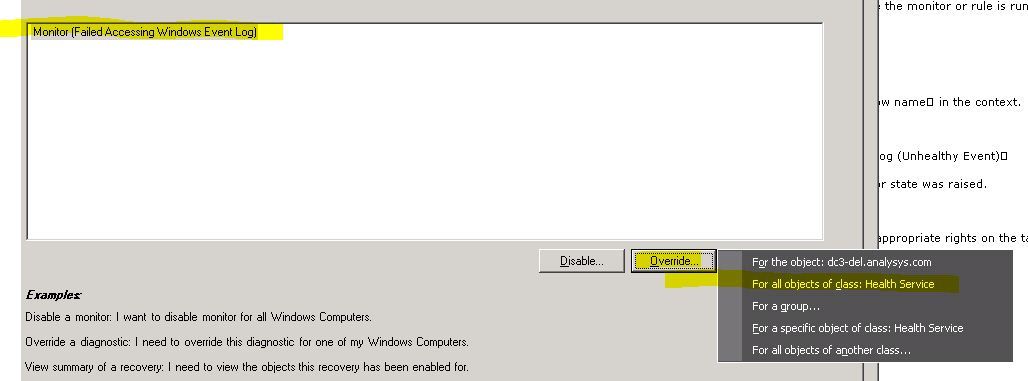
To stop these error you need to Disable this alert using overrides.

To Override:  Right Click the Monitor, click on Properties .
click on Overrides and select "For all objects of class: health Service"


Choose Destination Management Pack. and change the value from "True" to override value "False"
 

and click on APPLY


Now you can see that it disabled the monitoring of the Windows Event Log.


I hope this Helps

Thanks
Aman Dhally