Showing posts with label SQL Server 2008. Show all posts

Wednesday, February 1, 2012

How to change the Default retention period of ACS Database of SCOM.

Hi,

What is Retention Period of database?

Once a day database when database grooming run it removed the data in ACS Database which is older then number of days specifies in database retention option.

My Problem: By default database retention period is of 14 days, but when i installed the ACS Services i choose to keep the database for 60 days and the drawback is my hard-disk starting filling up very quickly. Then i decide to change the Database retention period from 60 days to 30 days.

Lets do it.

First Login to your “SQL Server” using your “SQL Server Management Studio” .

01-02-2012 16-44-33

Browse to your “ACS Database” mine is “OperationsManagerAC” and click on “dbo.dtconfig” table.

01-02-2012 16-45-03

The retention day option is saved under (ID 6) in the “dbo.dtconfig” table of the ACS Database.

To change the setting, right click on “dbo.dtconfig” table and choose “Edit Top 200 Rows”.

01-02-2012 16-45-26

You can see that the value of ID 6 is 61, now lets change it to 31, {

01-02-2012 16-45-38

I change the value of ID-6 to  “31”.  and now run the same “Edit 200 row” query again.

01-02-2012 16-46-01

and you will saw that value is successfully saved as  “31” …

01-02-2012 16-46-42


That’s all

thanks

aman dhally

Friday, July 8, 2011

Mystery of Blank Schedule Email Reports in SCOM

Hi,

After deployment of Reporting Server for SCOM we test the working of Reporting Server by generating few “Windows Generic Reports” manually and they works perfect. So we plan to schedule Reports for a weekly delivery on Emails. So that we can have the statistics of our server weekly.

So when we test schedule email reports in SCOM, but when reports arrives in an email they are with no data completely blank email with link to Reporting Server. Then we investigate on internet and found that this is a knows issue (KB:  http://support.microsoft.com/kb/972821) and we also found  the blog posting on Kevin Holman on the same Issue. (Please visit his blog posting  for more clarifications..click here )

So Lets try.

Step:1

Login to your SQL Reporting Server for SCOM

Navigate to default Reporting Server installation path and navigate to ”Reporting Services\ReportServer\bin”   and Open

“ReportingServicesService.exe.config” in notepad.

“C:\Program Files\Microsoft SQL Server\MSRS10.MSSQLSERVER\Reporting Services\ReportServer\bin”

2 


Step:2

After opening “ReportingServicesService.exe.config”  we need to insert below code in to this file. The main issue is where to insert the Code.


To resolve this problem, add the following information to the ReportingServicesService.exe.config file in the ReportServer\bin directory:

<dependentAssembly>
<assemblyIdentity name="Microsoft.ReportingServices.ProcessingCore" publicKeyToken="89845dcd8080cc91" culture="neutral" />
<bindingRedirect oldVersion="9.0.242.0" newVersion="10.0.0.0" />
</dependentAssembly>
<dependentAssembly xmlns="urn:schemas-microsoft-com:asm.v1">
<assemblyIdentity name="Microsoft.ReportingServices.ProcessingCore" publicKeyToken="89845dcd8080cc91" culture="neutral" />
<bindingRedirect oldVersion="9.0.242.0" newVersion="10.0.0.0" />
</dependentAssembly>

The Right Position of Correct code is below.


This XML section must be added in between <runtime><assemblyBinding…> and </assemblyBinding></runtime> statements of the \ReportServer\bin\ReportingServicesService.exe.config file.
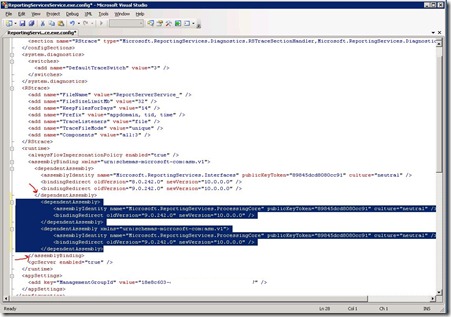

3


After Insert the Code in to “ReportingServicesService.exe.config” . save the file and reboot the “SQL Server Reporting Service”


4


That’s all :) ..


BUT…


But i after doing that problem is still not resolved. We still getting Black Reports. Now No Clue what to do next.  Then i tried the Following. I open the File in “Notepad++” and formatted it, save the file and restart SQL Reporting Server.


Before Formatting


Old-


After Formatting


Resolver


BingO.. this works for me … ( I know it doesn’t make any sense but it works) .. After done this my all schedule email reports works perfectly.


I hope that it may save some one else time ..


Thanks


Aman Dhally

Thursday, June 30, 2011

SCOM: Run As Account does not exist on the target system or does not have enough permissions [MS SQL server 2008]

Hi,

Yesterday  my SQL Server Management Pack reporting that it is facing some problem with “run as accounts” it says either “run as accounts does not exists” or they don't have “enough permission” to do some tasks. Both these server have SQL Server 2008 installed.

When SQL 2008 is installed by default, it no longer places BUILTIN\Administrators in the SQL security access list.  The install of SQL 2008 now prompts the installer to give SQL a user account, or Group, to grant SA (SysAdmin) rights to.  If installing on a standalone instance, NT AUTHORITY\SYSTEM (Local System) is still granted SA rights.  If installing on a clustered instance, NT AUTHORITY\SYSTEM (Local System) is granted public rights, but not SA.

Kevin Holman

Error

Error-1

Kevin Holman wrote an excellent post on this error.. click here

I have only few machine which are running SQL Server 2008, so i plan to give my default agent action account the rights on SA in SQL Server 2008.

Solution

Login to problematic SQL Server. Open SQL Management Studio. Got to SECURITY and then expand LOGINS,

1a

Choose the “Default Agent Action Account” right click on it and then choose Properties.

2a

Now click on “Server Role” and then select “SysAdmin” and click on OK..

3-a

That’s All :-) .. It should resolve the SQL Server 2008 Run As Problem.

I hope that it helps someone :)

Thanks

Aman Dhally