Monday, January 16, 2012

How to Deploy or Install Audit Collection Services (ACS) in SCOM 2007 R2

Hi all,

Q: what is Audit Collection Service (ACS)

Answer: In Operations Manager 2007, you can use Audit Collection Services (ACS) to collect records generated by an audit policy and store them in a centralized database. By default, auditing is configured on individual computers and all events generated from an audit policy are saved to the local Security log of the audited computer. {microsoft}

In simple language, ACS keep the copy of “Security Log” of the Event Log. It save all these security logs in to a database.

This consist of three things.

- ACS Forwarders : this is  service which is installed by default with SCOM-Agents installations but disabled.

- ACS Collector : This collector receive data from forwarders and then send the data to ACS database

- ACS Database : The SQL Database which save all the  security logs in to it.


Enough theory, let’s start implementing it now.

I am installing ACS Service on my Root Management server.

PART-1                                                                                                                                                                                               

Install Audit Collection Services Server

Let’s start.

as per Microsoft in you ACS server you have the latest version of MDAC {http://go.microsoft.com/fwlink/?LinkId=74155.}. When i check the the latest version of MDAC it is 2.8 with SP1. and i already have this version because this version was published in year 2005.

16-01-2012 16-17-24 

Insert your SCOM installation media and run “SetupOm.exe” or if its autorun it will open automatically.

Click on “Install Audit Collection server

2

a welcome wizard for ACS installation will open now then click on “NEXT

3

Select “I accept the agreement” and click on “Next

4

I don’t have any previously created ACS database, so i choose “Create a new database” , click on “Next

5

Here it is using MDAC to connect to the SQL Server. lets choose default data source name “OpsMgrAc” and click on “Next

6

In Database, i have a separate “SQL Server” for SCOM databases. Select “Remote Database Server”,  and type the name of you remote “SQL Server” and in database name choose i am choosing the default name “OperationsManagerAC”, now click on “Next”.

7

In “Database Authentication” i choose “Windows Authentication” you can also choose “SQL Authentication” its up to you. click on “Next

8

In “Database Creation Option” i choose the “use SQL Server’s default data and log file directories”, because in my SQL Server i already defined the file location for data and log files that’s why i want to use this option. click on “Next

9

In “Event Retention Schedule” i choose the 3:00am and i want to keep the security log data for at least for 2 months, so i choose 60 days. Click on “Next”.

10

in “timestamp” i want to use my local time . click on “Next

11

it’s showing the “Summary of installation”, now click on “Next”

12

Now it trying to create ACS database and it asking for “SQL Server Login” credentials, i was using windows authentication, so i just click on “Use trust Collection” and click on OK.

13

Yippy!!! its showing that our ACS Server is successfully installed.  Click on Finish.

14

I logged in to my SQL Server to check if the database is created or not. It is successfully created.

Cool.

15

Till here our installation for ACS Server is finished. The next step is to enable auditing on agent.

PART-2                                                                                                                       

Enable Auditing on Agent

Open SCOM console.

Click on “Monitoring” tab and navigate to “Operations Manager” and then click on “Agents” and then click on “Agent health State”. Now the two pane will open , but we are concerned about the “Right hand side” pane only.

16

Now choose the Agents on the right hand side of the pane and in action tab under “Health Service tasks” click on “Enable Audit Collection

17

In Credentials.I am using my “Administrator” account to run the task. provide the credentials and click on “RUN

18

When you click on “RUN” it show you that task is started.

19

Now the status is “Success” all done :)

20

How can i see the Logs???? ahhh !!! that is crucial part. we need to configure “SQL Reporting Services to access these logs.

PART-3                                                                                                       

Configure ACS Reporting Services to Access these Logs or view report bases of Security Logs

make sure you have “SQL Reporting Services Installed” to configure this and make sure that you are able to access http://YourReportServerName/ReportServer .

it should look like this.

24

Now Login to your ACS Server or any SCOM Management Server and create a ACS folder in C Drive of it  C:\ACS

21

Go to your SCOM installation media navigate to ReportsModels\acs and copy all files to C:\ACS folder

22

now open “command prompt” and navigate to c:\ACS and type the command

UploadauditReports.cmd <urACSDatabase Servername> http://YOURREPORTSERVER/ReportServer C:\ACS


23

after run the command it shows you that its uploaded few files.

25

now open access you report server again http://YourReportServerName/ReportServer . and you will see that a new folder is added named as “Audit Reports

26

Cool now open this page. http://YourReportServerName/Reports make sure this is Reports not ReportServer

A page will open like below.

28

and then click on “Audit Reports

27

Then click on “DB.Audit” if you not able to find the “DB.audit” then just soft the files by details.

29 

I Keep the everything as it is except i choose “windows integrated security”. Click on Apply.

30

All Done… now lets check it…….

PART-4                                                                                

everything is done and step up now.

Now Open SCOM Console and click on Reporting tab.

You will see the “Audit Reports” options in the left hand side, click on it and then you will see the some predefined templates on right hand side.

31

Open any report and run it.

Voilaa!!! Working now :)

32

I hope that it save someone else time

Thanks

aman dhally

Tuesday, November 29, 2011

“When you un-installed the SCOM Agent from managed servers, SCOM is not discovering those Servers again to re-install agents”

Hi,

Today i have found that on few of our servers there are wrong version of SCOM Agents is installed, for example 32bit Agents are installed on 64bit Servers. Then i plan to uninstall them and reinstall the proper agent version

I un-installed the Agents using “Add remove programs” on all the servers and then tried to reinstall them again using “Operations Manager Console”.

But

When i run the “discovery wizard” it’s not showing me the server on whose I un-installed the agent, i tries 3-4 time but same problem. then i searched the internet and tried few troubleshooting tip but nothing helps.

then i thought let’s check the “agent managed” may be the server is still on SCOM Database that’s why its not detecting it.

I got to “Administration Pane” and click on “Agent managed” and then i search for the server on which i am trying to re-install the agent and as expected it was there.

Agent_12

ok, not its time to delete it, select the server and right click on it and click on “delete”

Agent_13

now click on “Yes”

Agent_14

All Done, wait for 5 minutes , run the discovery wizard again and hopefully this time you will successfully able to discover the Server :)

Solution: In my case the solution was removing the server in “Agent managed”

thanks

aman dhally
Monday, November 28, 2011

“Remote SMTP queue length is outside the configured threshold” error in SCOM


Hi,

As the error clearly showing us that the problem is with one and more “SMTP” queue length. Let’s investigate a little bit more about it.

Error:

SMTP

in error the source is “SMTP” and the path is one of our “Exchange Server”, in the error it is showing that the default number of message is set to “200” and the interval is “3600sec (1hour). which means this “SMTP Queue Monitor” check exchange server queues after every hour and if there is more than 200 messages are stuck in the queue it generates an alert.

let’ check our exchange Sever to solve the error

Open Exchange Server “System Manager” navigate to your exchange server and click on queues, and here we found our problematic queue, there is “301” messages stuck in it, the “SMTP monitor is right”,

SMTP-1

Solution:

  1. try to find out why your remote queue got stuck, may be some firewall rules blocking SMTP connection
  2. Make sure your SMTP Connector is working
  3. Right click on your problematic queue click on force connection and see if email start get deliver
  4. Try restarting “SMTP” service
  5. if nothing helps try contacting  any “Exchange Sever” engineer or administrator

in My case solution was different

i select the problematic server and right click on it and choose find messages.

SMTP-2

all the messages which stuck in the queue was “JUNK” then i decide to remove them.

I selected all messages , right click on them and choose “Delete (no NDR)”

SMTP-3

My message queue is not back to zero 0, all is well now , you can close this alert manually or wait for another one hour to get close it automatically.

SMTP-4


Thanks

Aman

Tuesday, November 22, 2011

Yippy !!!! Ten Thousand Page Views


Our Blog have 10,000 Page views ….. {i knew these Number doesn’t matter but stillll…}
Yippy!!!!!!!
10013

“A SQL job failed to complete successfully” error in SCOM

Hi,

As the error is self explainery that one of our SQL Backup Job is failed. How to fix it? Depends how much you know about SQL and you also know what to do. But let’s check which job is failed and let me show you how to check the failed “SQL Job” , I know its quite simple but sometime few SCOM new users don’t know where to find these failed jobs.

Error:

Error is showing that “SQL Job is failed on Computer 2K” and the job name is “Copy Tables From”

Sql_Job_1 

let me RDP to my SQL Server “2K” and let me open “ SQL Server Enterprise Manager”

Click on your SQL Server, expand the “Management” , beneath it expand “SQL Server Agent” and then click on “Jobs” and here is our failed SQL Job. You can see there is a red cross in the front of the the job.

Sql_Job_2

To check the more details about the job, right click on it and then choose “View Job History”

Sql_Job_3

now click on “Show Step Details” if you want to know more info about the job.

Sql_Job_4

So here is the complete step info about the backup job. I think you can find a useful info on why this job failed.

Sql_Job_5

Otherwise: go to your SQL Administrator and told him “Damn, Fix it ,”

Thanks

Aman Dhally

Monday, November 21, 2011

SCOM : How to resolve “The SMTP Local Retry Queue Total is outside calculated baseline” error in SCOM.

Hi
As the notification is clearly saying that there is some error in our exchange server’s Local retry Queue. But what is the exactly happening.?
Let explore it little bit.
Error :::
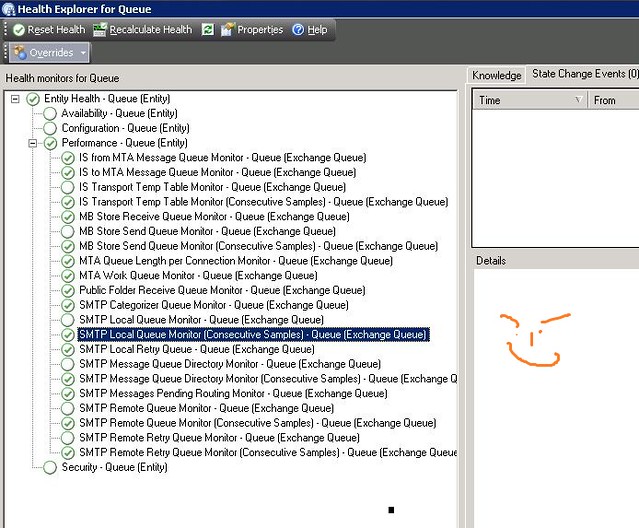
Right Clink on the Error, Click on Open and Choose “Health Explorer”

Now Click on “SMTP Local Retry Queue - Queue [Exchange Queue] , and click on “Monitor Properties”

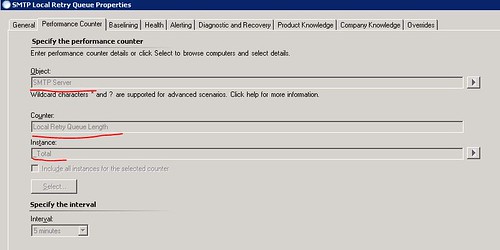
In “Performance Counter” tab, it is showing that this monitor is based on “Perfmon” and it is monitoring using the “Local Retry Queue Length” on “SMTP Server” Object of the Exchange Server.


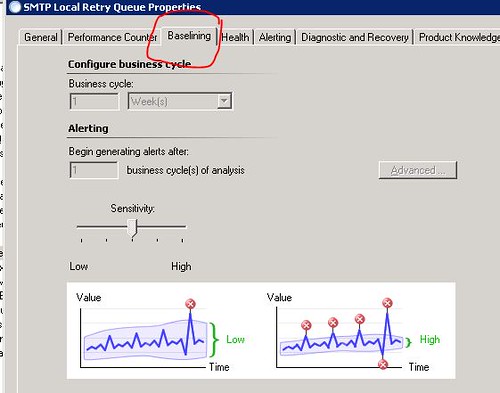
The Next tab in “Baselining”, which indicates that this is a “STT” Self Tuning Threshold Monitor. OK,,


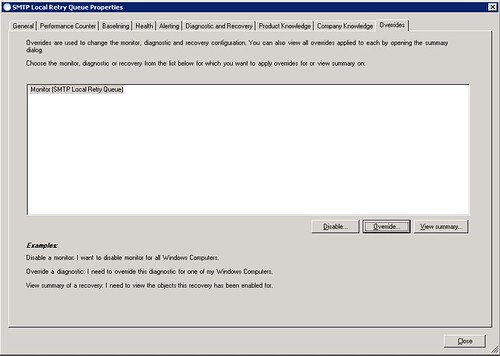
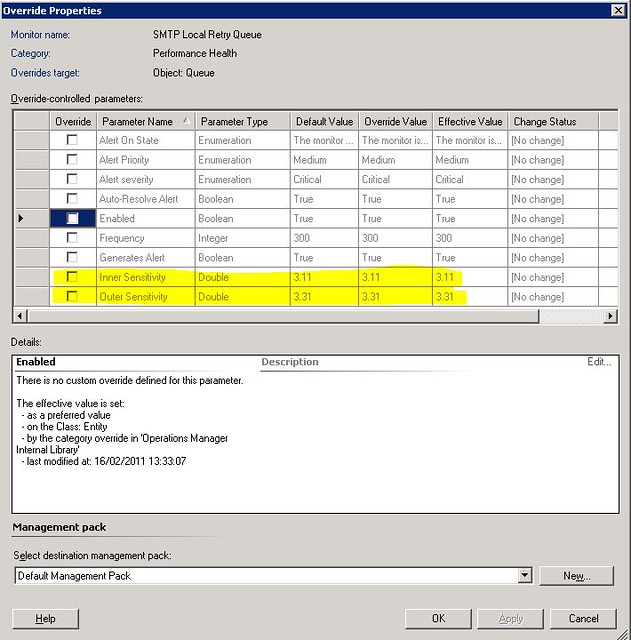
Now click on “Overrides” tab, and click on “Overrides”

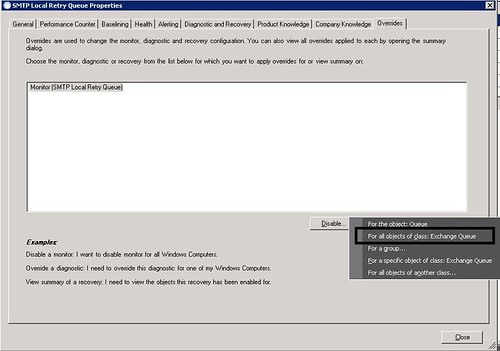
Choose “ For All Object of Class Exchange Queue”


in Overrides the “Inner Sensitivity” of the monitor is 3.11 and I think it means if it have more then 3.X message in the Local retry queue it should send an alert.


how to check????
why not we manually check the “Local Retry Queue” performance counter manually, Isn’t it is a good idea?
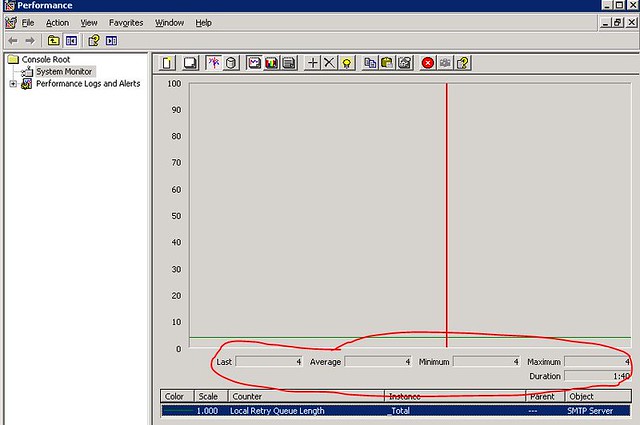
let’s do it, Open the “Performance Monitor” in Object choose “SMTP Servers” and in Counter choose “Local Retry Queue Length”
in Counter Explanation is says “ The Number of messages in the local retry queue”


Ok, so how many local messages are stuck, let check, OK , we have 4 local message stuck in the retry queue.


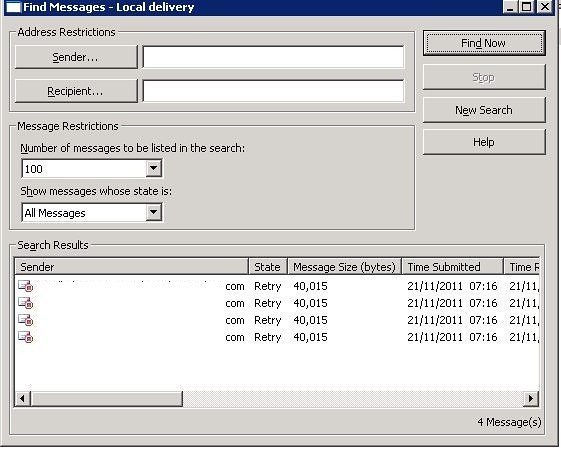
now go to your Exchange Server Queue and you will find that there is 4 messages are stuck.


let’s find them , Delete them if they are not necessary emails.


Once the Messages are deleted, our local retry queue is back to normal i means on Zero 0.


after 5-10 minutes the error should be gone otherwise you can choose the monitor and click on “Recalculate health” Option.


YippY!!! Exchange Server is Happy Again.


Thanks
Aman Dhally

Friday, November 18, 2011

Get-Overrides created on Specific Day .

hi,

yesterday one of our  SCOM admin created few overrides in SCOM and today he is on leave and the also not picking up the phone and I need to know which overrides he created.

Then i think that lets try to write a little basic PowerShell script which show the list of overrides created between specific number of days.

you can download the script from here : http://dl.dropbox.com/u/17858935/Get_SCOM_Overrides_by_Day_Created.zip

Make sure you run this script in “Operations manager Shell”

   1: ### I set $olddate to 2 Days ago date
   2:  
   3: $olddate = (Get-Date).AddDays(-2)
   4:  
   5: ## Select every Management pack and Piped it to "Get-Override)
   6:  
   7: $Mp = Get-Managementpack | Get-Override 
   8:  
   9: ### Now it will show only overrides which are created after $oldDate
  10:  
  11: $Mp| Where-Object { $_.TimeAdded -gt $olddate} | select ManagementGroupId,Name,TimeAdded | fl *
  12:  
  13: ######## E N D of S C R I P T #############

in $olddate i minus 2 days so if today is 18 November then $olddate should have 16 November stored in variable


OldDate


in variable $Mp in am storing all Management packs and piped them to Get-Overrides


MpPack


lets run $Mp lets see what we will get.


It shows the list of all Overrides in all management packs. Now we need to sort them.


MP2


$Mp| Where-Object { $_.TimeAdded -gt $olddate} | select ManagementGroupId,Name,TimeAdded | fl *


in above command , we piping $MP to where-Object cmdlet and choosing TimeAdded property in Overrides and comparing them with our variable $OldDate , so if the TimeAdded is property is greater then 16 November then it show all the Overrides created between 17,18 November.


seems working … :)


result


Download Link: http://dl.dropbox.com/u/17858935/Get_SCOM_Overrides_by_Day_Created.zip


Hope someone like it :)


Thanks


Aman Dhally

Monday, October 24, 2011

Agent Proxy on SCOM Agents


Hi,
When we install SCOM agents on any server or workstation after installation we need to enable [tick on] Agent Proxy on Agents properties via go to :
  • Administration Pane
  • Go to "Agent Managed" beneath "Device Management"
  • Search for the Agent
  • Right click on the Agent and select Properties
  • and tick on "Agent Proxy"


good Enough !!! but if we  installed SCOM Agent on 100 servers or if your organization have more then two administrators and rather then you other administrator installed the SCOM Agents and he forget to enable the “Agent Proxy” , then you you found that which Agents are “Proxy Enabled” and which are not.

There are two ways to accomplish it.

Option 1:
Check the Settings of each and Every SCOM Agent
Option 2
Use PowerShell :)
let me show you how .

Open “Operations Manager Shell

and type this command “Get-agent | ? { $_.ProxyingEnabled -match $False} ” and hit enter .
and this will show you the list of All agents which doesn’t have “Agent Proxy” enabled.

to be more precise we can also select name of the Agents
Get-agent | ? { $_.ProxyingEnabled -match $False}  | select Name

That’s all :)

now we know on which “Agent” we need to enable “agent Proxy” setting.


Thanks
Aman Dhally