Monday, October 24, 2011

Agent Proxy on SCOM Agents


Hi,
When we install SCOM agents on any server or workstation after installation we need to enable [tick on] Agent Proxy on Agents properties via go to :
  • Administration Pane
  • Go to "Agent Managed" beneath "Device Management"
  • Search for the Agent
  • Right click on the Agent and select Properties
  • and tick on "Agent Proxy"


good Enough !!! but if we  installed SCOM Agent on 100 servers or if your organization have more then two administrators and rather then you other administrator installed the SCOM Agents and he forget to enable the “Agent Proxy” , then you you found that which Agents are “Proxy Enabled” and which are not.

There are two ways to accomplish it.

Option 1:
Check the Settings of each and Every SCOM Agent
Option 2
Use PowerShell :)
let me show you how .

Open “Operations Manager Shell

and type this command “Get-agent | ? { $_.ProxyingEnabled -match $False} ” and hit enter .
and this will show you the list of All agents which doesn’t have “Agent Proxy” enabled.

to be more precise we can also select name of the Agents
Get-agent | ? { $_.ProxyingEnabled -match $False}  | select Name

That’s all :)

now we know on which “Agent” we need to enable “agent Proxy” setting.


Thanks
Aman Dhally

Monday, July 11, 2011

SCOM: Use Operations Manager Shell to close multiple Alerts generated by Same Rule

Hi,

When today i login in to my SCOM console I saw approx 134 Active Alerts about Microsoft SQL Job failure. I was about to close these alert but then one thing strike in my mind that lets try to close these alerts using “Operations Manager Shell”. These Alerts are generating from same source and the name of the alert is same to it would not be to hard. So let try.

problem

Our First Step is to find out the Command which can show us Alert in SCOM Shell.

Open “Operations manager shell” and type  Get-Command *alert* , this will search for all SCOM cmdlets which have the word alert (we use wildcard *), and as you know PowerShell cmdlets works on Verb-Noun format  so if we use Get-Alert cmdlets it will shows all alerts.

alert

Let Try Get-Alert

alert-2

Type get-alert in the shell and hit Enter and it shown you all alerts.

Sol-5

Next task is to choose which Alert to Close .. if you look at active Alert in SCOM CONSOLE name of My Alert is “"A SQL job failed to complete successfully"

 problem-1

Now our next step is to find the properties and methods supported by Get-Alert command. To know these we need to use another command Get-Member

member

Yes.. it has name property…Gr8

Sol-2

Now we need to see all alerts whose name match “"A SQL job failed to complete successfully", for filter the output from Get-alert command we pipe (|) the output of Get-Alert command to Where-Object cmdlet.

Get-alert | Where-Object { $_.Name -match "A SQL job failed to complete successfully"}

where 

This will show all alerts whose name matches with "A SQL job failed to complete successfully"

So now our next step is to find a cmdlet which can close these alerts. lets find out..  run the same command

Get-Command *alert*

resolve-alert

So this time we have find Resolve-Alert cmdlet. now we need to join and our cmdlets command using piping . so this should be like this.

get-alert | where-object { $_.Name -match "A SQL job failed to complete successfully"} | Resolve-alert

rr

in Get Alert we are searching for an Alerts | then we are filter then using Name with match to “Sql job Failure | and then we are resolving them.  now type the above command and hit enter. It will take sometime to do this.

When you command run successfully, open SCOM Console and search for same SQL JOB error and you will found nothing :)

Solved-7


I hope that it helps someone…

Thanks

Aman Dhally

Friday, July 8, 2011

Mystery of Blank Schedule Email Reports in SCOM

Hi,

After deployment of Reporting Server for SCOM we test the working of Reporting Server by generating few “Windows Generic Reports” manually and they works perfect. So we plan to schedule Reports for a weekly delivery on Emails. So that we can have the statistics of our server weekly.

So when we test schedule email reports in SCOM, but when reports arrives in an email they are with no data completely blank email with link to Reporting Server. Then we investigate on internet and found that this is a knows issue (KB:  http://support.microsoft.com/kb/972821) and we also found  the blog posting on Kevin Holman on the same Issue. (Please visit his blog posting  for more clarifications..click here )

So Lets try.

Step:1

Login to your SQL Reporting Server for SCOM

Navigate to default Reporting Server installation path and navigate to ”Reporting Services\ReportServer\bin”   and Open

ReportingServicesService.exe.config” in notepad.

C:\Program Files\Microsoft SQL Server\MSRS10.MSSQLSERVER\Reporting Services\ReportServer\bin”

2 


Step:2

After opening “ReportingServicesService.exe.config”  we need to insert below code in to this file. The main issue is where to insert the Code.


To resolve this problem, add the following information to the ReportingServicesService.exe.config file in the ReportServer\bin directory:

<dependentAssembly>
<assemblyIdentity name="Microsoft.ReportingServices.ProcessingCore" publicKeyToken="89845dcd8080cc91" culture="neutral" />
<bindingRedirect oldVersion="9.0.242.0" newVersion="10.0.0.0" />
</dependentAssembly>
<dependentAssembly xmlns="urn:schemas-microsoft-com:asm.v1">
<assemblyIdentity name="Microsoft.ReportingServices.ProcessingCore" publicKeyToken="89845dcd8080cc91" culture="neutral" />
<bindingRedirect oldVersion="9.0.242.0" newVersion="10.0.0.0" />
</dependentAssembly>

The Right Position of Correct code is below.


This XML section must be added in between <runtime><assemblyBinding…> and </assemblyBinding></runtime> statements of the \ReportServer\bin\ReportingServicesService.exe.config file.


3


After Insert the Code in to “ReportingServicesService.exe.config” . save the file and reboot the “SQL Server Reporting Service”


4


That’s all :) ..


BUT…


But i after doing that problem is still not resolved. We still getting Black Reports. Now No Clue what to do next.  Then i tried the Following. I open the File in “Notepad++” and formatted it, save the file and restart SQL Reporting Server.


Before Formatting


Old-


After Formatting


Resolver


BingO.. this works for me … ( I know it doesn’t make any sense but it works) .. After done this my all schedule email reports works perfectly.


I hope that it may save some one else time ..


Thanks


Aman Dhally

Thursday, June 30, 2011

SCOM: Run As Account does not exist on the target system or does not have enough permissions [MS SQL server 2008]

Hi,

Yesterday  my SQL Server Management Pack reporting that it is facing some problem with “run as accounts” it says either “run as accounts does not exists” or they don't have “enough permission” to do some tasks. Both these server have SQL Server 2008 installed.

When SQL 2008 is installed by default, it no longer places BUILTIN\Administrators in the SQL security access list.  The install of SQL 2008 now prompts the installer to give SQL a user account, or Group, to grant SA (SysAdmin) rights to.  If installing on a standalone instance, NT AUTHORITY\SYSTEM (Local System) is still granted SA rights.  If installing on a clustered instance, NT AUTHORITY\SYSTEM (Local System) is granted public rights, but not SA.

Kevin Holman

Error

Error-1

Kevin Holman wrote an excellent post on this error.. click here

I have only few machine which are running SQL Server 2008, so i plan to give my default agent action account the rights on SA in SQL Server 2008.

Solution

Login to problematic SQL Server. Open SQL Management Studio. Got to SECURITY and then expand LOGINS,

1a

Choose the “Default Agent Action Account” right click on it and then choose Properties.

2a

Now click on “Server Role” and then select “SysAdmin” and click on OK..

3-a

That’s All :-) .. It should resolve the SQL Server 2008 Run As Problem.

I hope that it helps someone :)

Thanks

Aman Dhally

Wednesday, June 29, 2011

SCOM: Event ID “2000”

Hi,
Today I check my SCOM windows event log and saw some error logs with “EVENT ID 2000”. Complaining about that the one of my  SERVER is not a part of SCOM Management Group.
Error

So Lets try to resolve it .
Step 1
My First Step is Login to the server who is generating an alerts. First I removed the SCOM Agent and then I reinstall   again manually.
Step 2
Now in SCOM console to to “Administration” then click on “Pending Management” and you may see the name of the server on which we just installed the SCOM AGENT.
Sol-1
Right click on Server and click on “Approve”
Sol-2

Now wait for 3-4 minutes to update the changes in SCOM and after few minute you will see that server is appeared in SCOM and it is healthy now.
Resolve
And you will see “EVENT ID 29103” saying that our problematic server is now successfully able to contact with SCOM server.
Resolve-1

I hope it may helps someone
Thanks
Aman Dhally

Tuesday, May 31, 2011

SCOM: Event ID “33333” in SCOM from Source “DataAccesslayer”

Hi,
From past few days i am getting Event ID code “33333” from source “DataAccesslayer” in Operations Manager Log of my RMS. This events are generating in almost every minute.
A
The error is indicating about to “Enable "clr" configuration option” is SQL server
B
Text Error Code
Event Type: Warning
Event Source: DataAccessLayer
Event Category: None
Event ID: 33333
Date: 31/05/2011
Time: 09:28:41
User: N/A
Computer: Foo-BAR
Description:
Data Access Layer rejected retry on SqlError:
Request: MTV_SelectProperty_b87e82bc-1a85-4de3-330a-13133cf5f9c3 --

(ManagedTypeId=994bdf28-10b8-52e4-3334-d65a63d9fe52), (IsDeleted=False),
(RegExPattern0=(?i)^10.0..*), (RegExPattern1=(?i)^10.1..*)
Class: 16
Number: 6263
Message: Execution of user code in the .NET Framework is disabled. Enable "clr enabled" configuration option.

For more information, see Help and Support Center at
http://go.microsoft.com/fwlink/events.asp.

Solution:
I searched few website and finally I got the solution. The solution is to enable “CLR” option is “OperationsManager” database so that user codes in .NET can executes

To do this Connect to your SQL server and log in to SQL Server management Console.

Right Click the “OperationsManager” database and click on “New Query

C

In “New Query windows” type the below code and then click on “Execute
sp_configure @configname=clr_enabled, @configvalue=1
GO
RECONFIGURE
GO
 
 
D

In Message Pan you will see that it run successfully and “clr” option in changed from “0” to “1”.

E

After i done this, the error code “33333” not occurred again … 
source: TechNet
I hope it helps someone :)

Thanks
Aman Dhally

Friday, May 27, 2011

SCOM: SCOM not recognising SQL Server 2008 and Reporting Services installed

Hi
Yesterday I planned to install “Reporting Server” and “Data Warehouse” for SCOM on Microsoft SQL Server 2008. So to implement it i setup a new Server and Install Microsoft SQL Server 2008 and SQL Reporting Services in to it but when i run the “Check Prerequisites” from SCOM Installation media it was not recognising the  SQL and Reporting Services Installed.
1
Then I Click on More to check the details of the error.
2
3
Solutions:
The problem was “SCOM” needs “SQL Server 2008” with “Service Pack 1” or later. You can download SQL 2008 service pack 1 from here.
After Installation of Service Pack .. SCOM Detects the SQL Server 2008 and reporting Services.
11
I know its my mistakes. I should read the dependencies and prerequisites before doing anything.But I am sharing it may be it helps someone :)

Thanks
Aman Dhally

Thursday, May 19, 2011

SCOM: How to Backup System Center Operations Manager 2007 R2

HI All,
Yesterday I was working on “How to Backup System Center Operations Manager 2007 R2”. I go through different document and posts and read few documentations and I think I should also share this information with you.
Our first step is to plan what to backup. So here is the list
  1. Note down SCOM servers IP Address, Subnet, Gateway
  2. Note down the Location of System Center Operations Manager Installation Path
  3. Backup SCOM Databases
    1. OperationsManager (Operational Database)
    2. OperationsManagerDW (Dataware house Database)
    3. OperationsManagerAC (Audit Collection Server Database)
    4. ReportServer (Reporting Server Database)
    5. ReportServerTempDB (Reporting Server Temporary Database)
    6. Master (SQL Server Master Database)
    7. MsDbData (Msdb database)
  4. IIS 6.0 Metabase or IIS 7.0 configuration
  5. Root Management Server Encryption Key
  6. Create List of All Management Pack Installed
  7. Backup of Unsealed (customised) Management packs
  8. SCOM Registry Keys
  9. Backup your files
Let’s Start
  1. I have noted down the IP-Address of SCOM including Subnet mask, Gateway IP and DNS Entries.
  2. I noted down the location where is my SCOM in Installed, in my case it is installed on “C:\Program Files\System Center Operations Manager 2007
  3. Backup Databases
Operations Manager Operational Database (OperationsManager) 
The OperationsManager database contains almost all of the Operations Manager environment configuration settings, agent information, management packs with customizations, operations data, and other data required for Operations Manager to operate properly.
Note:     If your backup procedure sets the OperationsManager database to be offline during backup, Operations Manager caches incoming data, and then, after backup is complete, Operations Manager stores that data in the database.
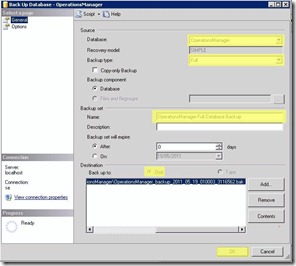
Open “Microsoft SQL Server Management Studio” , Expend the “Database” , Right click on “OperationsManager”, choose “Tasks” and click on “Backup
SqlBackup-1
For now, I am choosing “Backup type = Full” and Name of the Backup and Backup Destinations, (for now I am backing up the data in to my network folder (Click on “ADD” to define the location of where you want to keep your backup”) and click on “OK
SqlBackup-2
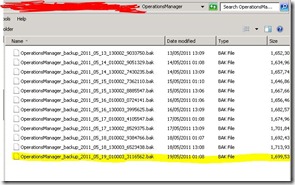
After “Backup” process finish , you can see the data on your backup destination folder.
SqlBackup-3

Do the same for all SCOM Databases ( OperationsManagerDW, OperationsManagerAC,ReportServer,ReportServerTempDB,Master,MsDbData)
  • Reporting Databases (just a brief intro)
Operations Manager Reporting uses the following databases:
· Operations Manager 2007 data warehouse (OperationsManagerDW)
· SQL Server Reporting Services databases (ReportServer and ReportServerTempDB)
The OperationsManagerDW database contains all of the performance and other operational data from your Operations Manager environment. SQL Reporting Services then uses this data to generate reports such as trend analysis and performance tracking.
  • ACS Database (just a brief intro)
The Audit Collection Services (ACS) database, OperationsManagerAC, is the central repository for events and security logs that are collected by ACS forwarders on monitored computers.
The OperationsManagerAC database can grow significantly depending upon how many ACS forwarders send events to the ACS database and the filters configured to control what events are written to the database.
  • Master Database (just a brief intro)
The master database is a system database, which records all of the system-level information for a Microsoft SQL Server system, including the location of the database files. It also records all logon accounts and system configuration settings. The proper functionality of the master database is key to the operation of all of the databases in a SQL Server instance.
  • MSDB Database (just a brief intro)
The MSDB database, Msdbdata, is a SQL system database, which is used by the SQL Server agent to schedule jobs and alerts and for recording operators. The proper functionality of the MSDB database is key to the operation of all the databases in a SQL Server instance.

Backup IIS Metabase
My SCOM installed on “Windows 2003 server”  so I am using IIS 6.0. To backup IIS 6.0 metabase, Go to RUN (windows key + R) and type “%systemroot%\system32\inetsrv\iis.msc” and hit OK
IIS
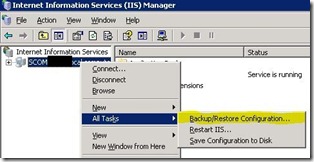
Right click on your “Computer Name” and then click on “All tasks” and choose “Backup/Restore configuration
IISMetabackup-1-SCOCM
Click on “Create Backup” and then type the “Configurations backup Name” and then hit on “OK
IISMetabackup-2-SCOCM
By Default all Metadata are stored in “%systemroot%\system32\inetsrv\MetaBack
IISMetabackup-4-SCOCM

Backup Root Management Server Encryption Key
To restore SCOM from scratch we need “RMS Encryption Key”. You must backup “RMS Encryption Key” and store it on secure locations.
To backup an Encryption Key go to “C:\Program Files\System Center Operations Manager 2007” double click SecureStorageBackup.exe
BackupEncryptionKey-1-SCOM
When you double click “SecureStorageBackup.exe”, an “Encryption Key Backup and restore wizard” Open, click on NEXT
BackupEncryptionKey-2-SCOM
in “Select Action” choose to “Backup Encryption Key” and click on “NEXT”
BackupEncryptionKey-3-SCOM
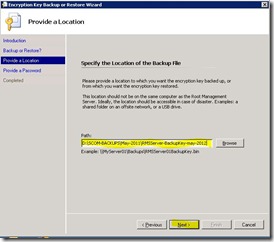
Now “Specify the location of Backup File” where you want to save your encryption key, name it and click Next
BackupEncryptionKey-4-SCOM
Specify the password to protect the key and SCOM will ask for this password when we restore it after restorations after failure.
BackupEncryptionKey-5-SCOM
Click on “Finish”
BackupEncryptionKey-6-SCOM

Create List of All Management Pack Installed
It is handy to keep the latest list of all “Management Pack” installed in SCOM. The list will helps us to download or restore them. To create an List of All Management Packs, open “Operations Manager Shell” and type :
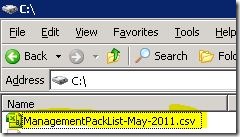
Get-ManagementPack | Export-csv c:\ManagementPackList-May-2011.csv
List-managementpack
CDrive
this will export all management packs in to .CSV file which we can import to excel and see the list of sealed and unsealed Management Packs
for example : Import the CSV file in to Microsoft Excel and create a filter on Data and the you are view list of All management packs by “sealed” or “Unsealed”
Filter

Backup of Unsealed (customised) Management packs
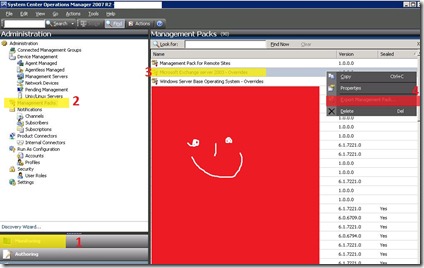
Open “System Center Operations Manager Console” click on “Monitoring” , click on “Management Packs” and sort the Management Packs by “Sealed” or “Unsealed”, choose the “Management pack” which you want to export, then right click it and choose “Export management pack”
Export-Mp-Gui
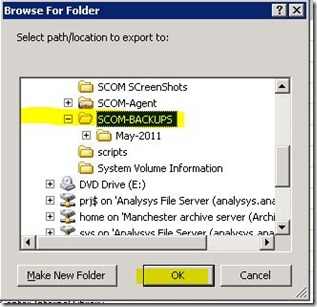
choose the location where you want to save “Management Pack” and click on “Ok”
Export-Mp-Gui-1
Exported “Successfully” , do the same for every unsealed Management Pack
Export-Mp-Gui-2

Backup SCOM Registry Keys
I read on some posts that we need to backup SCOM registry Keys and it seems a good backup practice. so open “Registry editor" navigate to “My Computer\HKEY_LOCAL_MACHINE\SOFTWARE\Microsoft\Microsoft Operations Manager\” and export the whole key.
RegistryBackupLocation-SCOM
Right Click on “Microsoft Operations manager” ,Click on “Export
Export registry
Choose the location where to save registry keys, and choose the file name make sure you have selected (Selected branch), and click on “Save
Export registry-1

Backup your files
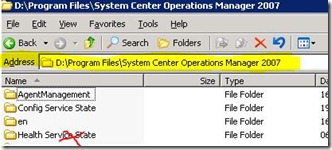
The last thing to backup is your installation folder. :-).
Folder
As per Microsoft documentations when you restoring your folder make sure you don’t restore the “Heath service State” folder.

That’s all :-)
Hope it helps someone

Thanks
Aman Dhally